Change Password |
  
|
Change Password |
|
To change password, follow the steps below:
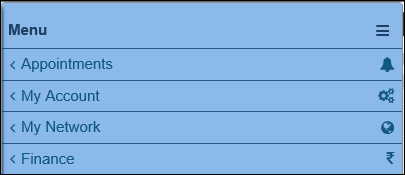
| · | Click the Menu button on the left corner of your Home page. The Menu options appear. |

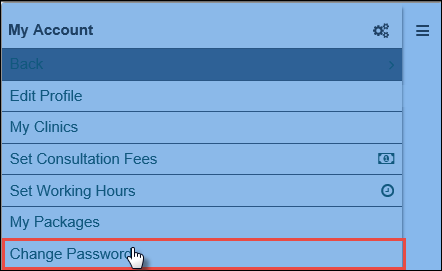
| · | Click Menu > My Account > Change Password. |
| · | The Change Password dialog box appears. |
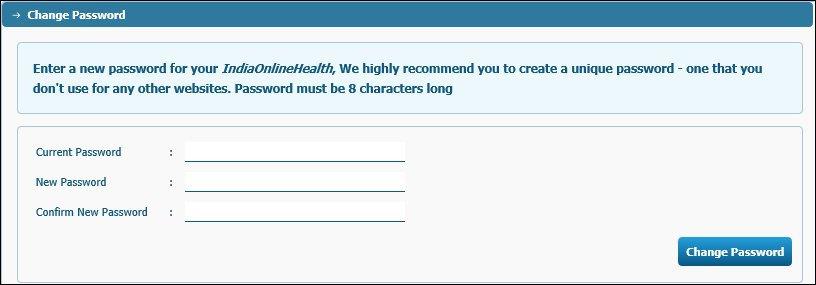
| · | Type the current password in the Current Password field. |
| · | Type your new password in the New Password field. The new password that you choose must be eight characters long. IndiaOnlinePolyclinic recommends that you choose a new and unique password that you do not use in any other website. Provide additional security by choosing a password that is a mix of letters (Upper and Lowercase), numbers and characters. This is to ensure that your information is protected. |
| · | Type the same password again in the Confirm New Password field. |
| · | Click the Change Password button. |
| · | The message "Password changed successfully" appears. |